Select MobileMedia Version:
The Shipping module of MobileMedia populates the list of media items associated to a Data Request or Remediation session. Use the list to pull the media items.
To populate the list of media items:
-
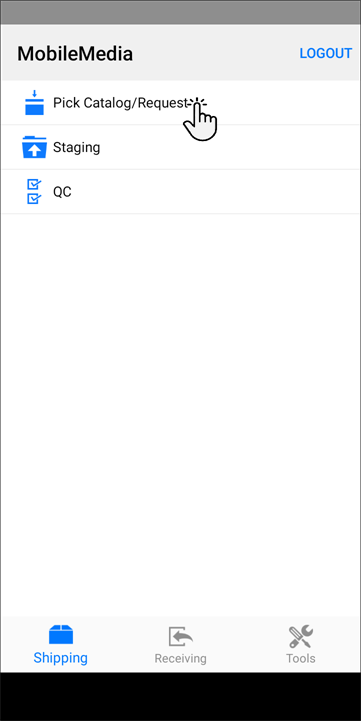
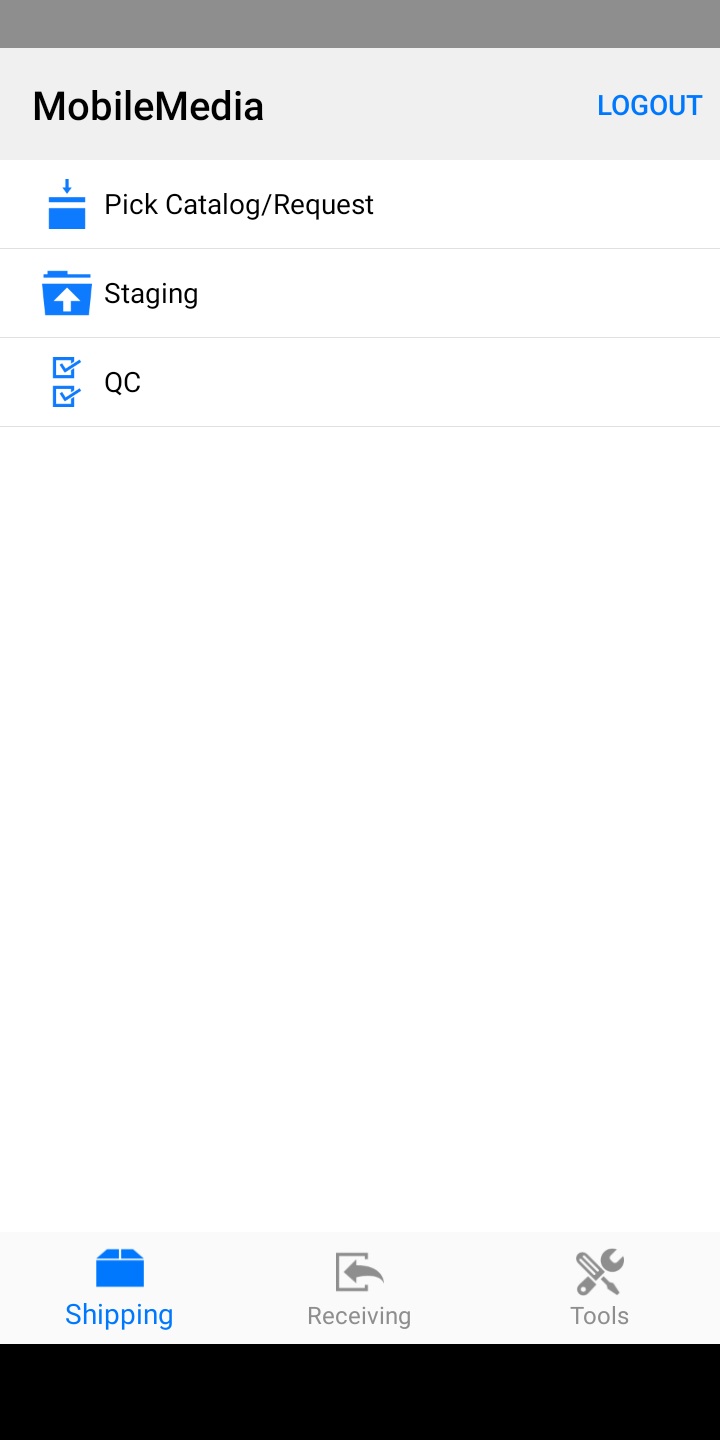
Open the Shipping module.
-
Tap Pick Catalog/Request.
-
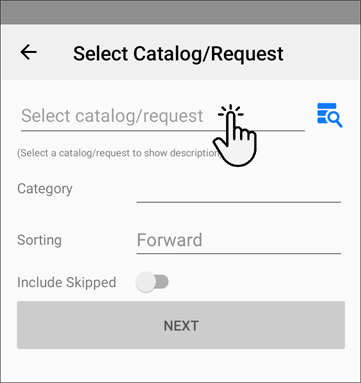
In the new screen, tap Select order/request.
-
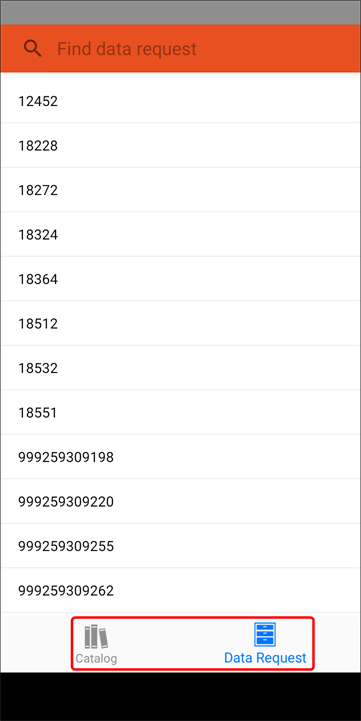
At the bottom of the screen, tap Catalog or Data Request and select the target order or request.
-
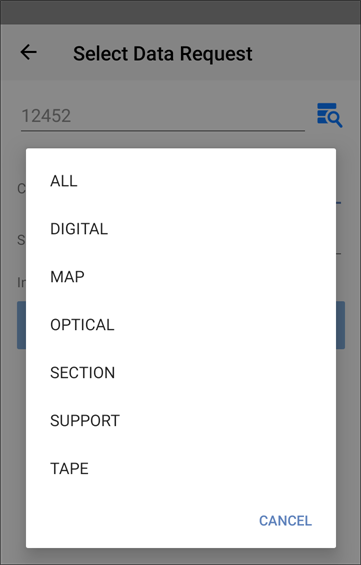
Tap the Category field and select All or select a particular category of items. Tap Done to close the field selection options.
-
In the Sorting field, select Forward or Backward depending on the direction you plan to begin. MobileMedia generates the list of items in sequential order according to the physical layout of your warehouse.
-
When you begin to pick the media, you may choose to skip an item. A skipped item stays on reserve for you to collect later. To include items you previously skipped, tap Include Skipped. The switch displays green when Include Skipped is turned on.
-
Tap Next.. The list of media in the first box populates on the screen. To proceed, refer to Pick media.
The Shipping module of MobileMedia populates the list of media items associated to a Data Request or Remediation session. Use the list to pull the media items.
To populate the list of media items:
-
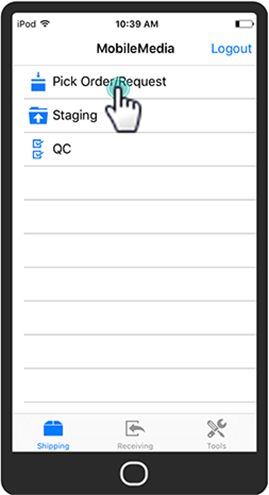
Open the Shipping module.
-
Tap Pick Order/Request.
-
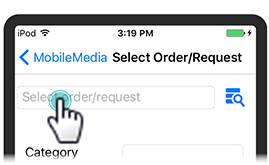
In the new screen, tap Select order/request.
-
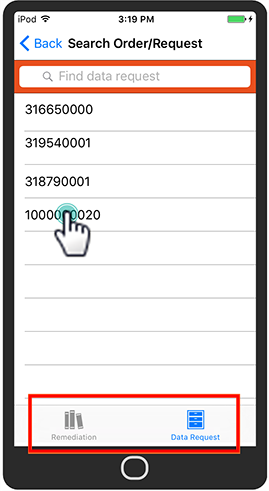
At the bottom of the screen, tap Remediation or Data Request and select the target order or request.
-
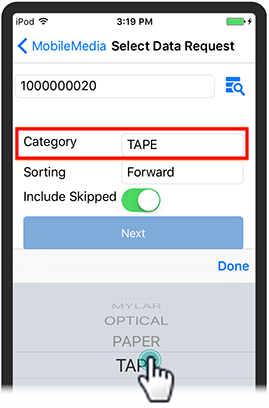
Tap the Category field and select All or select a particular category of items. Tap Done to close the field selection options.
-
In the Sorting field, select Forward or Backward depending on the direction you plan to begin. MobileMedia generates the list of items in sequential order according to the physical layout of your warehouse.
-
When you begin to pick the media, you may choose to skip an item. A skipped item stays on reserve for you to collect later. To include items you previously skipped, tap Include Skipped. The switch displays green when Include Skipped is turned on.
-
Tap Next. The list of media in the first box populates on the screen. To proceed, refer to Pick media.